The video could not load. Select play to try again.
Original Video
See the original footage before captions are added.
 Sharper.video
Create AI videos. Edit, extend and upscale in one place.
By continuing, you agree to our Terms of Service and Privacy Policy.
AI-POWERED VIDEO CAPTIONS
Add subtitles to your videos online with AI. Upload an MP4, MOV or WebM clip, choose the spoken language, and generate captions that sync with speech—no manual transcript needed.
Choose a video to generate subtitles from its speech.
MP4, MOV, WebM · Up to 60 minutesSelect the language spoken in your video for more accurate captions.
Choose how your subtitles look on screen. White suits most videos, while yellow and cyan help captions stand out in vlogs, tutorials and social clips.
Sign up and start creating for free
Required credits: — · Available credits: —
BEFORE & AFTER
See the difference captions can make. Automatically timed subtitles help viewers follow interviews, tutorials and social videos—even when watching without sound.
The video could not load. Select play to try again.
See the original footage before captions are added.
The video could not load. Select play to try again.
See the same video with clear captions that follow the spoken audio.
HOW IT WORKS
Add subtitles to an MP4, MOV or WebM video in three steps. AI transcribes the spoken audio and creates timed captions, so you don't have to type a transcript.
Choose a video file from your computer or phone. The spoken audio is used to generate the transcript.
Choose the language spoken in the clip and start subtitle generation. Speech recognition determines the text and timing.
Open your video in My Videos after submitting the task. When processing is finished, review captions, adjust their style, and export the result.
SPEECH-SYNCED SUBTITLES
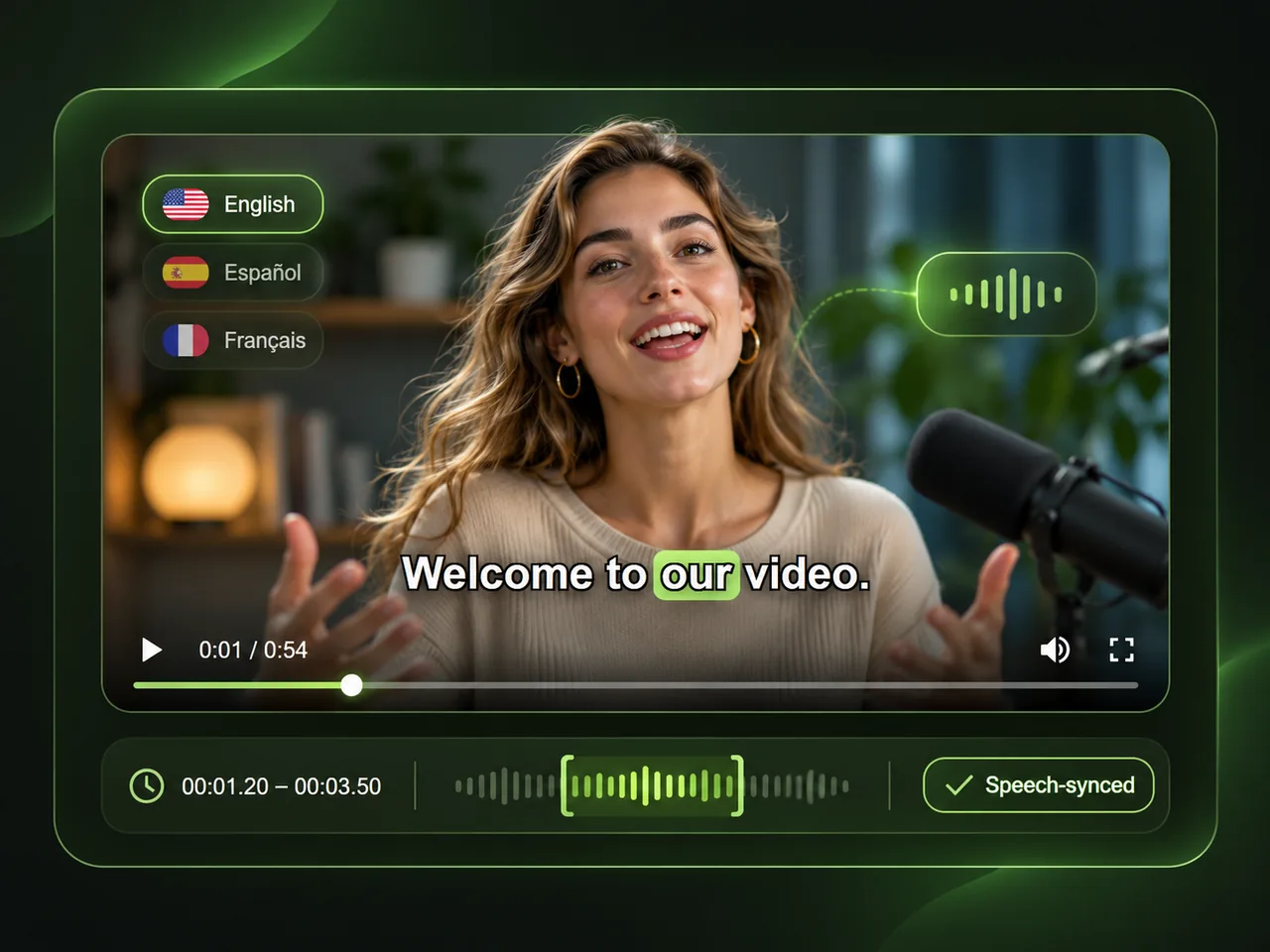
Generate automatic video subtitles that match the timing of spoken dialogue. Our AI subtitle generator transcribes audio and adds timestamps to captions for interviews, podcasts, online courses and tutorials, helping people follow your video with or without sound.
CUSTOM SUBTITLE STYLES
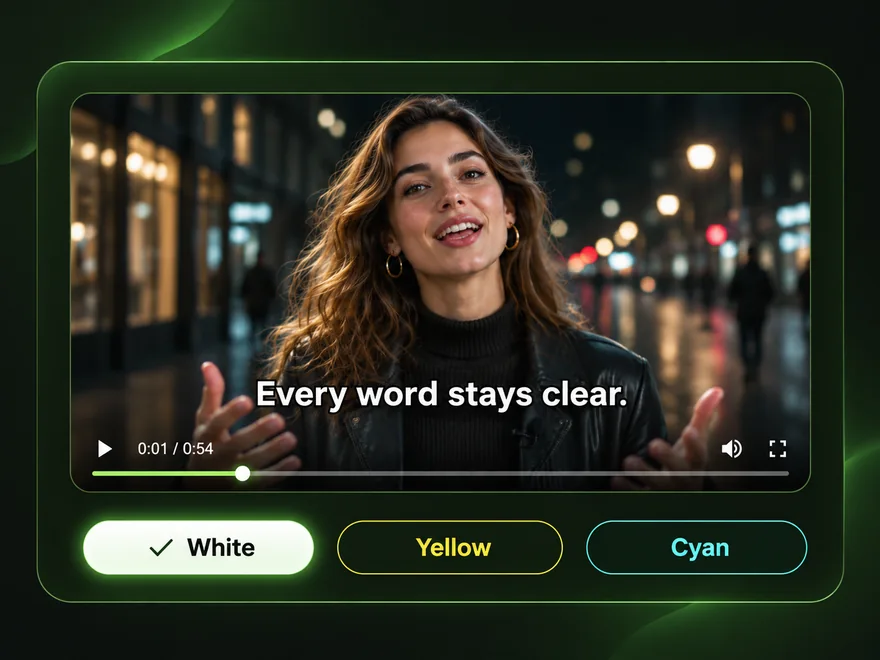
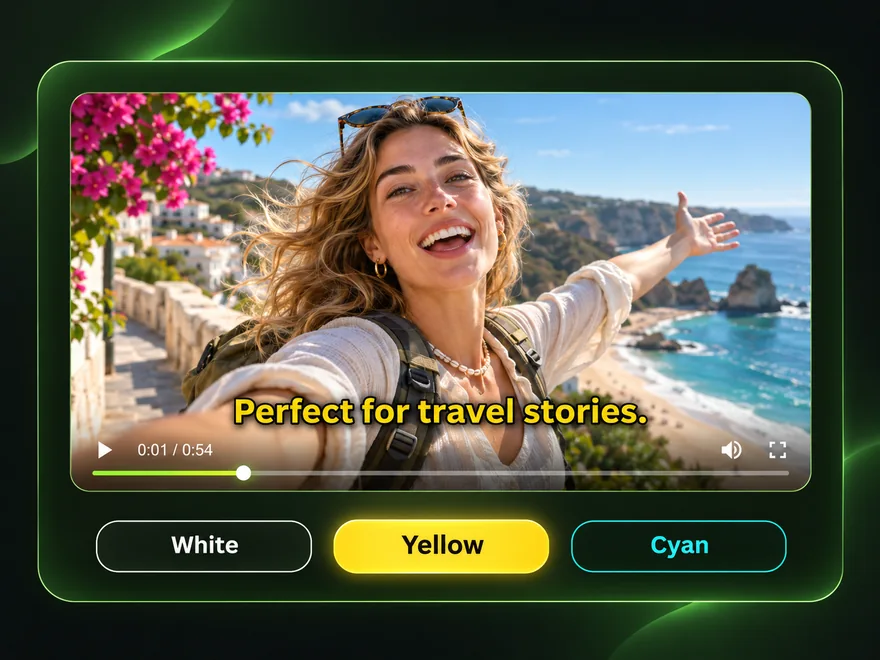
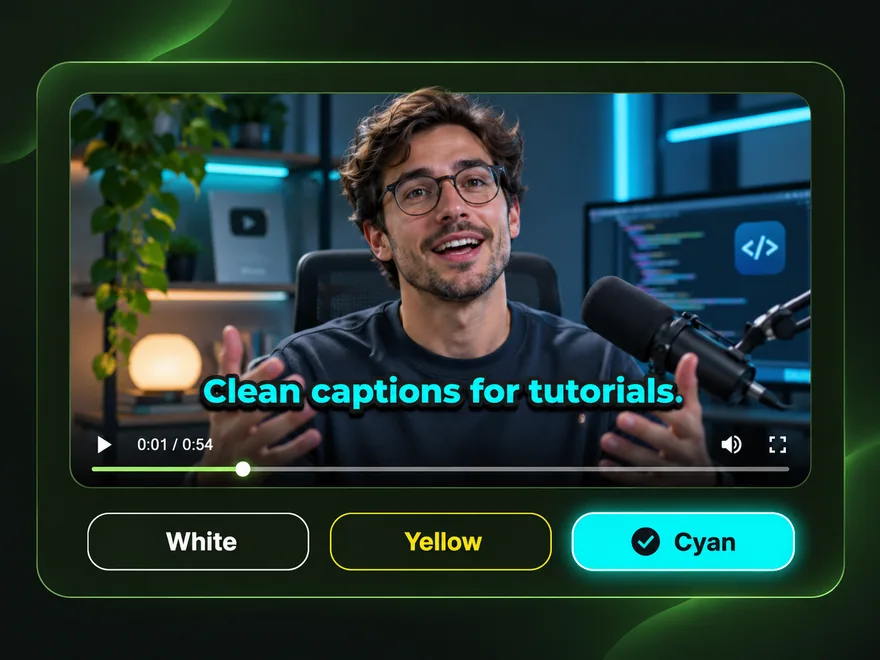
Customize your video subtitles with white, yellow or cyan captions. Choose a readable style for YouTube videos, Instagram Reels, TikTok clips, podcasts, online lessons and travel vlogs, then generate AI subtitles that match your video's spoken audio.
MULTILINGUAL SUBTITLES
Create video subtitles in English, Spanish, French, German, Portuguese, Arabic, Hindi, Japanese, Korean, Chinese and many other spoken languages. Select the language used in your recording and generate automatic captions for interviews, lectures, tutorials or social videos—without typing a transcript.
Subtitles are generated from the speech in your video in its original language. This tool creates captions from audio; it does not translate your video into a different language.
Recognition quality can vary with audio clarity, background noise, speaker overlap and accent.
FOR EVERY CREATOR
Add automatic captions to the videos you share, teach with or publish. Make spoken content easier to understand on social media, in online classes, during product demos and in recorded interviews.
Add subtitles to TikTok videos, Instagram Reels and short creator clips so your message is clear without sound.
Generate captions for online lessons, training videos, walkthroughs and recorded lectures.
Add readable captions to product demos, marketing videos and social ads that explain your offer.
Subtitle interviews, podcasts and presentations to help viewers follow every conversation.
FAQ
Find out how AI subtitles work, which video formats you can upload and how to customize captions before generating your video.
Yes. Every new Sharper.video user receives free credits after signing up. You can use those credits to try our Free Video Subtitle Generator, automatically add subtitles to your video, and download your generated result for free.
Credits are based on the length of your uploaded video. Videos up to 1 minute cost 2 credits. For videos longer than 1 minute, the rate is 2 credits per minute. The maximum supported video length is 60 minutes, which costs 120 credits. You can start with the free credits included with a new account.
Upload an MP4, MOV or WebM video, select the language spoken in it and click Generate Subtitles. You can follow your subtitle generation task in My Videos.
Yes. AI transcribes the spoken audio in your video and generates timed captions. You don't need to type or upload a transcript first.
Yes. Captions are matched to the timing of spoken words in your video. Accuracy may vary with sound quality and overlapping speech.
Choose from English, Spanish, French, German, Portuguese, Arabic, Hindi, Japanese, Korean, Chinese and many other languages in the upload settings. The tool generates subtitles in the spoken language, rather than translating the audio into another language.
Yes. Choose white, yellow or cyan before generating subtitles. White works well for interviews, yellow highlights captions on vlogs and social videos, and cyan suits tutorials and product demos.
Yes. Upload an MP4 video, choose the language spoken in the clip and generate AI captions. MOV and WebM files can also be selected for upload.
You can select videos up to 60 minutes long, subject to your plan and upload limits. If your clip is too long, trim it before generating subtitles.
No. Videos you upload to generate AI subtitles are not made public. To protect your privacy and rights, we delete your original uploaded video immediately after subtitle processing is complete and do not retain it.
After submitting your video, open My Videos to view the processing status and access the result when it is ready.
No. Sharper.video works online in your browser, so you can start adding subtitles without installing a desktop app.
EXPLORE MORE TOOLS
Trim, crop or convert your footage before adding subtitles. Create new videos with our AI Video Generator, or enhance existing clips with the AI Video Upscaler.
READY TO ADD CAPTIONS?
Upload your video and create automatic, speech-synced subtitles online—no transcript needed.
Upload a Video